If you want to deploy a website from GitHub to cPanel without using SSH, you can use cPanel's built-in Git Version Control feature. This guide will show you step by step how to connect a public GitHub repository to cPanel.
Step 1: Create a GitHub Repository
-
Go to GitHub and log in.
-
Click on New Repository.
-
Enter a Repository Name (e.g., "mywebsite").
-
Choose Public.
-
Click Create Repository.
-
Copy the repository URL (it looks like
https://github.com/yourusername/mywebsite.git).
Step 2: Open cPanel Git Version Control
-
Log in to your cPanel account.
-
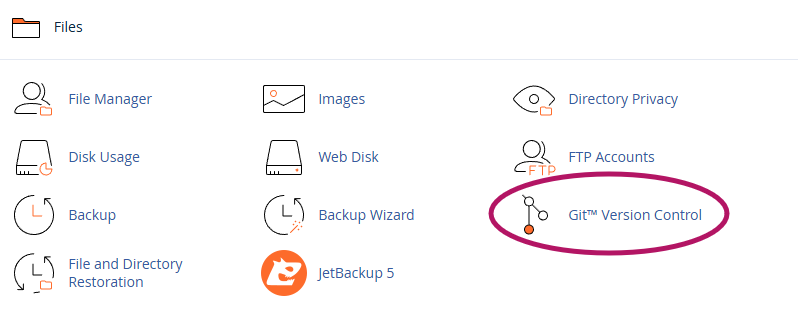
Scroll down to the Files section and click on Git Version Control.
Step 3: Create a New Repository
-
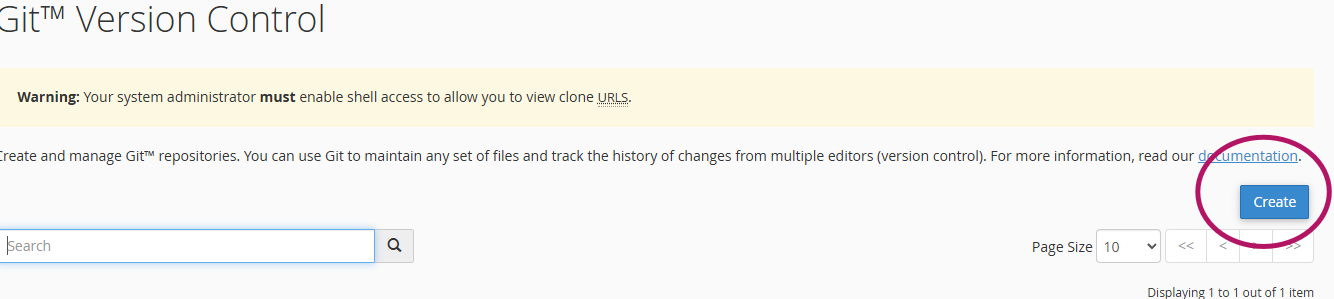
Click the Create button.
-
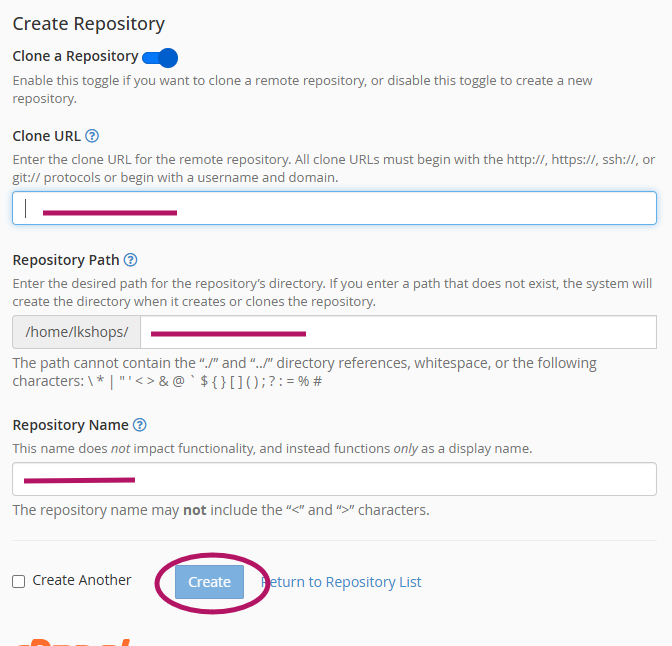
Under Repository Path, choose a folder where you want to store the project (e.g.,
/public_html/mywebsite). -
Under Repository Clone URL, enter your GitHub repository URL (Make sure it is public and starts with
https://github.com/username/repository.git). -
Click Create.
Step 4: Pull Files from GitHub
-
After creating the repository, go to the Git Version Control page.
-
Find your repository and click Manage.
-
Click the Pull or Deploy button to fetch the latest changes.
Step 5: Verify Your Files
-
Open the File Manager in cPanel.
-
Navigate to the folder where you cloned the repository (
/public_html/subdomain). -
You should see all your project files here